
This article will go over removing a files from your filesystem via the Container Terminal. This method is usually needed if a file has been corrupted and will not delete from Finder or File Explorer. Please be very careful or contact Scale Logic support for help as you can permanently delete files/directories from the system.
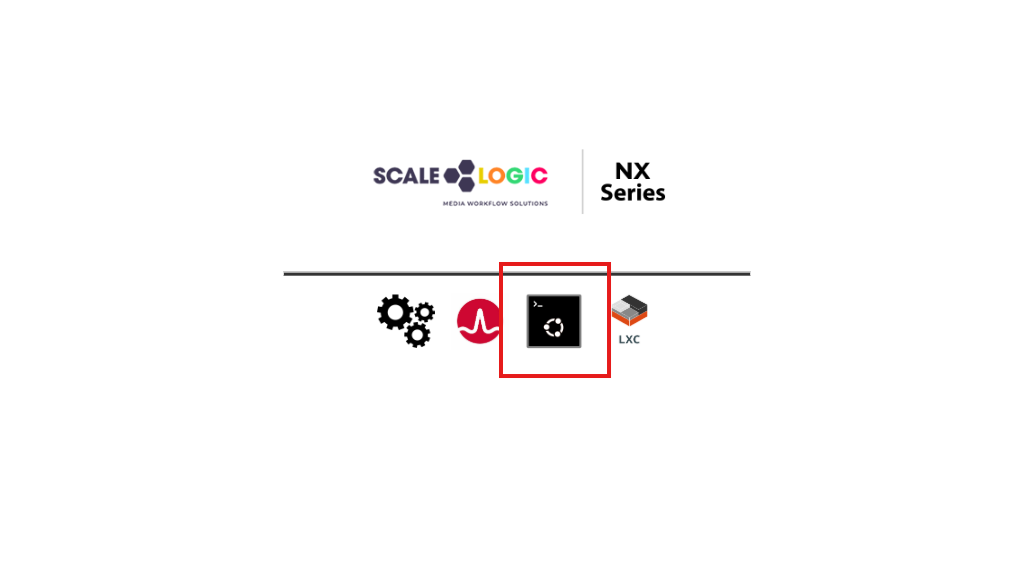
- Type the systems IP address in a web browser. When on the screen like below, click on the black CLI square to access the CLI console.
- Once accessed you will need to enter in the login creds. Username - admin / Password - GUI login password
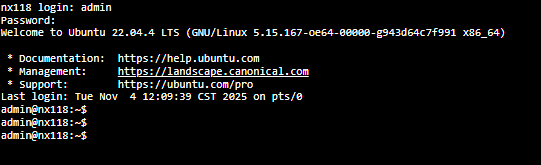
- You will eventually have to become the root user but to be safe we will wait to become root until we have navigated to the correct directory that the file is in.
- You will need to navigate to the directory the file is in, to start you will type "cd /Pools/Pool-x" where x is the pool number the directory is under. In our example we will use "0" as that is normally the pool most customer named. "cd /Pools/Pool-0" than hit enter.
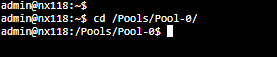
- This will get you into the top level of the storage pool. You can type "ls" and hit enter to see the current directories. At this point look for the starting directory the file is under.

- From there now navigate the directories until you get to the one the file resides in. type "cd <Directory Name>" to navigate the directories until you get to the correct one.
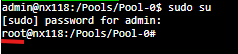
- If the file is there, become the root user so you can delete it. Type "sudo su" and hit enter, than type GUI login password and hit enter. If done correctly you should now see a "root@" instead of "admin@" as shown below.
 Now we can delete the file, type "rm -i filename" and hit enter. We are using the "i" so you have to confirm the deletion, type "y" to confirm. Type "ls" and enter to confirm the file is now gone.
 If snapshots are enabled the corrupted file will be in the snaps until they are rotated out based on the retention plan.
Please let us know if you have any questions.